# Send Subscribe / Tip / Profile buttons in KVIQA — setup guide (Dropfans + UnlockBL)
> How to enable the one-tap Send Subscribe, Send Tip, and Send Profile buttons inside KVIQA chats. Requires KVIQBOT + Telegram Premium + a connected Dropfans or UnlockBL vault. Average conversion lift: +30%.
**Canonical URL:** https://kviqa.com/blog/send-buttons
**Published:** 2026-05-22
**Author:** KVIQA Team
**Category:** Guides
**Reading time:** 4 min
**Tags:** Send Buttons, Dropfans, UnlockBL, KVIQBOT, Telegram Business, Conversion
**Cover:** https://kviqa.com/blog-covers/send-buttons.svg
A small gift icon next to the Vault button in every fan conversation. One tap fires a Telegram message with an inline action button that drops the fan directly into your Dropfans or UnlockBL Mini App. Here's the full setup.
---
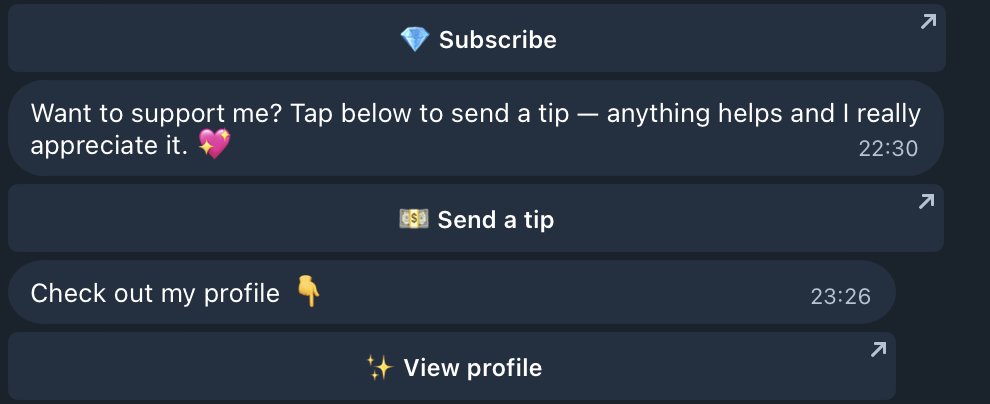
If you sell on **Dropfans** or **UnlockBL**, KVIQA now shows a small gift icon next to the Vault button in every fan conversation. One tap sends a Telegram message with an inline action button — *Subscribe*, *Send a tip*, or *View profile* — that drops the fan directly into your Mini App on the matching platform. No copy-pasting checkout links, no leaving the chat, no friction.
Average tip-conversion lift across the agencies we tested it with: **~30%**. Reason it works: the fan goes from three taps (read → copy → tap) to one (tap).
In the chat: Subscribe, Send a tip, and View profile buttons delivered inline by
KVIQBOT.
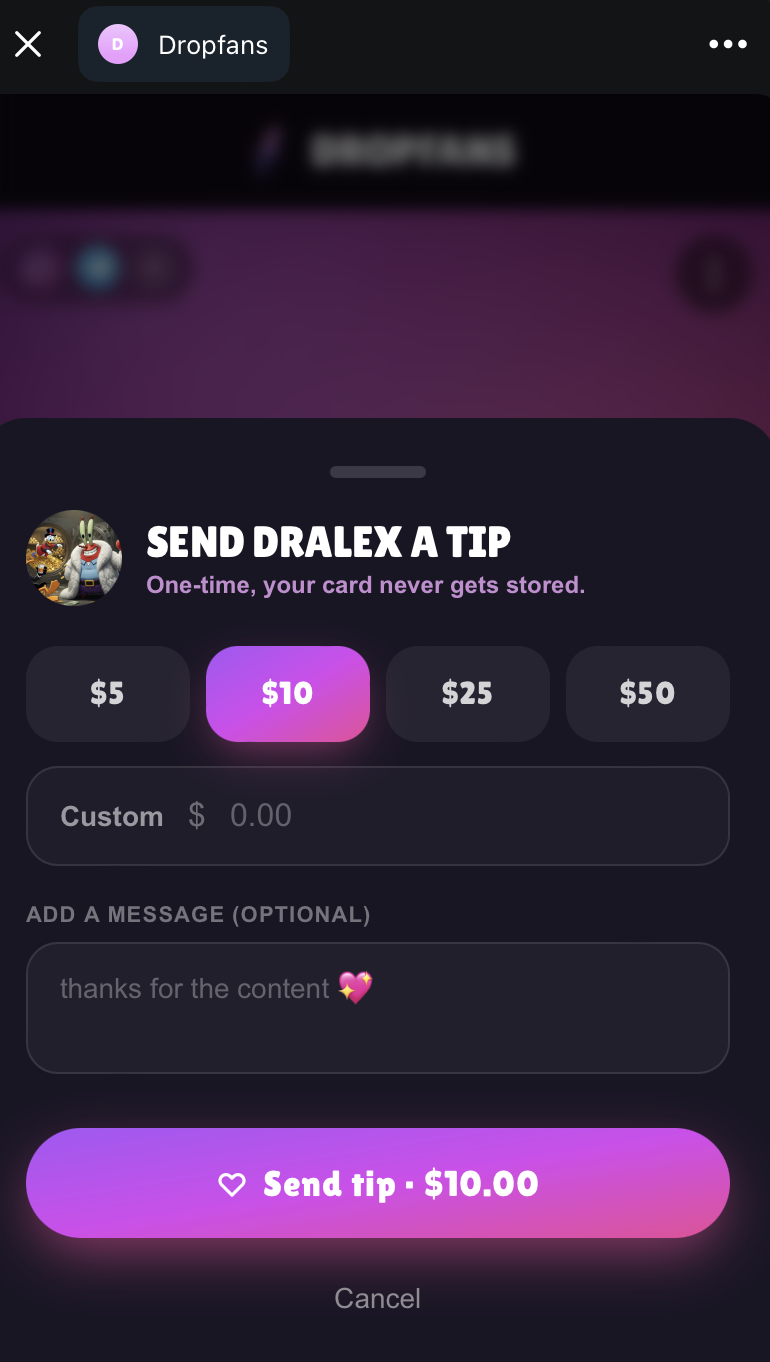
One tap later, inside Telegram: the Dropfans Mini App tip sheet with preset amounts
and an optional message field. UnlockBL renders the same sheet under its own
branding.
## What you need
- A KVIQA account with at least one Telegram account connected.
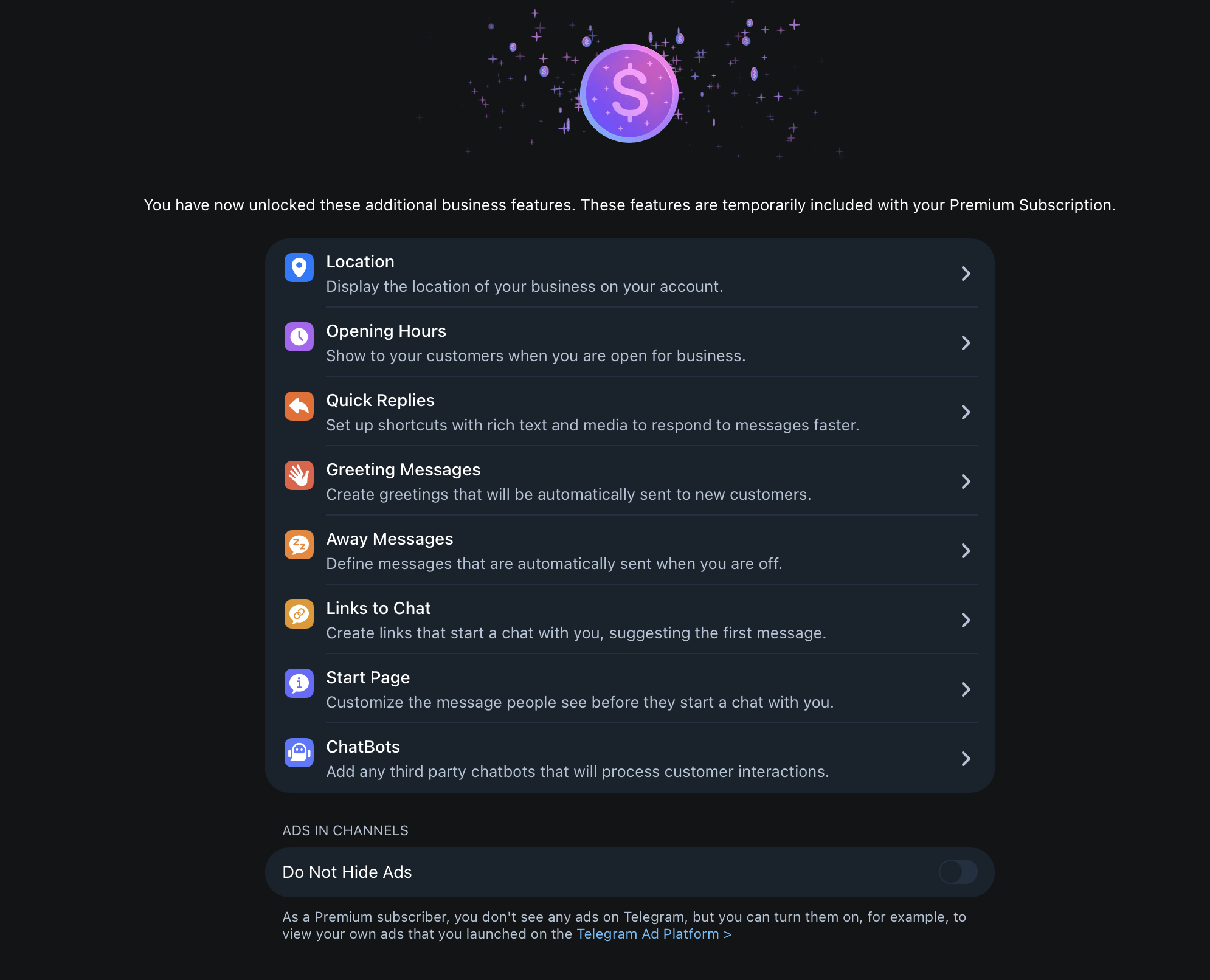
- **Telegram Premium** on the account you want to send buttons from. Telegram Business (and therefore Chatbots) is gated behind Premium.
- **KVIQBOT attached as your Business Chatbot.** The bot is what KVIQA uses to send the inline-keyboard message on the creator's behalf. Without it, the Composer gift icon stays hidden.
- A connected **Dropfans** or **UnlockBL** vault (or both — KVIQA will show a two-step menu when both are wired).
## Step 1 — Connect your Dropfans or UnlockBL vault
Open the [Team Board](https://kviqa.com/team-board), click your creator card, and use the Vault section to paste your API key. Dropfans keys start with dpfn_, UnlockBL keys start with ulbl_ (legacy unbl_ keys are also accepted). The creator's public @handle is pulled automatically from the platform — you do not need to type it in anywhere.
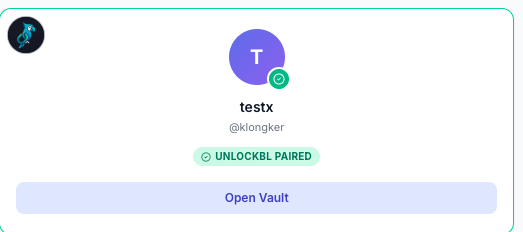
Once connected, the card shows e.g. *Dropfans connected — alex_demo* or *UnlockBL connected — alicesecret*.
When the vault is connected, KVIQA already knows the creator's @handle. No manual
entry needed.
## Step 2 — Make sure you have Telegram Premium
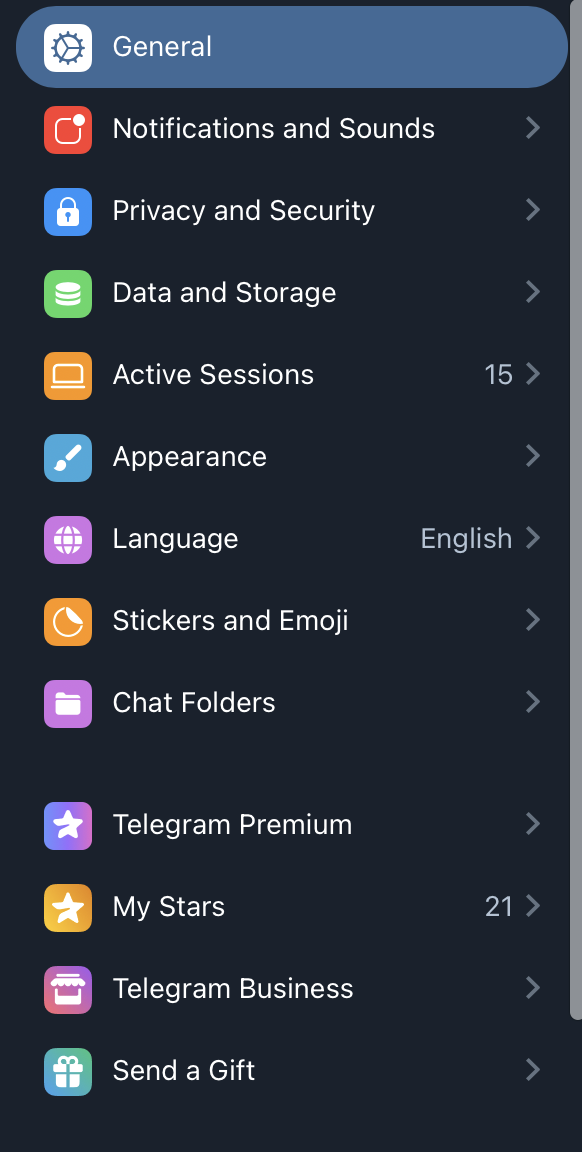
Open Telegram → **Settings**. If you do not see a *Telegram Business* row, you need to subscribe to Telegram Premium first. Premium is what unlocks Business Chatbots, which is what KVIQA uses to fire the inline-keyboard message.
The Telegram Business row only appears on Premium accounts.
## Step 3 — Open Telegram Business → ChatBots
Inside *Telegram Business*, scroll down to the **ChatBots** row at the bottom of the unlocked-features list. Tap it.
Telegram Business → ChatBots is where third-party assistants like KVIQBOT get attached
to your account.
## Step 4 — Add @KVIQBOT
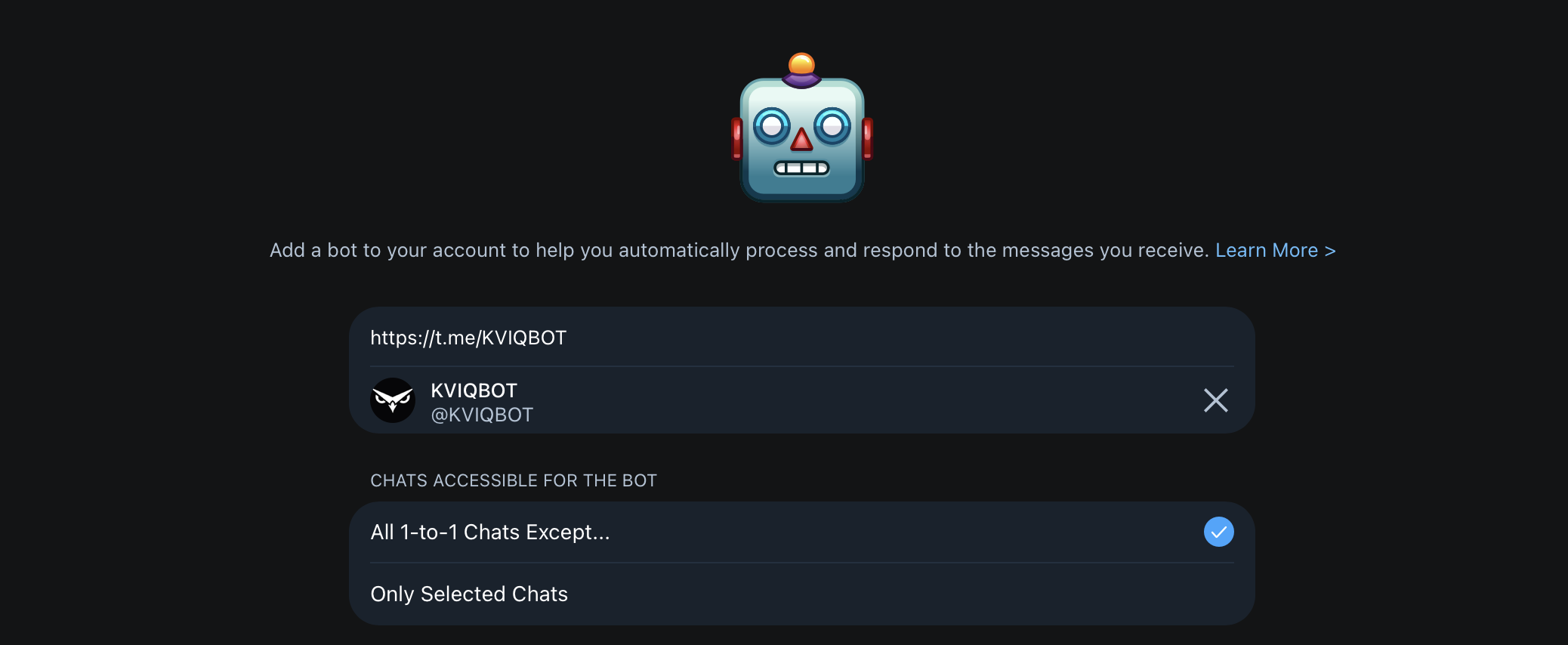
In the bot field, paste https://t.me/KVIQBOT (or just type @KVIQBOT). For *Chats accessible for the bot*, choose **All 1-to-1 Chats Except…** unless you want to restrict to a subset.
One bot per account. Telegram only allows a single Business Chatbot at a time, so
attaching KVIQBOT will replace any previous one.
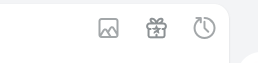
That's it. Switch back to KVIQA — the gift icon will appear in the Composer toolbar within a second.
Gift icon, between the Vault button and the schedule clock.
## Step 5 — Send a button
Open any 1-to-1 fan chat. Tap the gift icon. Pick *Send Subscribe button*, *Send Tip button*, or *Send Profile link*. If both Dropfans and UnlockBL are connected, you'll see a two-step menu — pick the platform first, then the action.
The fan receives a normal Telegram message with a single inline-keyboard button. Tapping it opens the matching Mini App right on your creator profile, with the tip / subscribe sheet pre-opened.
## Important: the "Fan must message first" rule
Telegram does not allow a Business Chatbot to send the *first* message in a conversation. The fan needs to have sent you at least one message **after** you attached KVIQBOT before you can fire a Send-Button into that chat. This is a Telegram Terms-of-Service rule — not something KVIQA can route around.
If you try to send a button into a stale conversation, KVIQA will show: *"The fan needs to message this account first…"*. Wait for the fan to ping you, then send the button. From that point on, the conversation is unlocked.
## Why only Dropfans and UnlockBL?
Both platforms expose a shared [Telegram Mini App](https://core.telegram.org/bots/webapps) — @DROPFANSBOT and @UNLOCKBLBOT — which is what the button deep-link opens. The Mini App reads the start parameter, looks up your creator profile, and renders the right action sheet (subscribe, tip, profile) inside Telegram.
OnlyFans, Fansly, Fanvue, and traditional Stripe checkouts do not (yet) ship a Telegram Mini App — there's nowhere for the button to deep-link *into*. The moment a partner ships one, we'll wire it in the same way.
## Conversion data
Across the agencies we tested Send-Buttons on, the tip-button shows a ~30% conversion lift versus posting the same Dropfans tip link as plain text. The subscribe button shows a similar lift on click-through, because the fan never leaves Telegram — the Mini App opens inline. The single-tap path is the entire reason.
## TL;DR
1. Connect a Dropfans or UnlockBL vault in Team Board.
2. Make sure your Telegram account has Premium.
3. Telegram → Settings → Business → ChatBots → add @KVIQBOT.
4. Wait for the fan to message you (Telegram TOS), then tap the gift icon.
5. Pick the action. Watch conversion go up.
---
## FAQ
### Why don't I see the gift icon in my Composer?
The icon only appears when your active account has BOTH a connected Dropfans or UnlockBL vault AND an active KVIQBOT Business connection. Connect the vault in the marketplace Team Board, then add @KVIQBOT as your Telegram Business chatbot. The icon auto-appears within a second after both are in place.
### Do I need Telegram Premium?
Yes. Telegram Business (Chatbots) requires Telegram Premium. Without Premium, you cannot attach KVIQBOT to your account, and the Send-Buttons cannot fire.
### Why is the Subscribe button blocked the first time I try it?
Telegram's Business API does not allow a bot to send a proactive message to a fan who hasn't messaged the creator since the bot was attached. Once the fan sends you any message — even just "hi" — proactive Send-Buttons are unlocked for that conversation. This is a Telegram-side rule, not a KVIQA limit.
### Does this work with OnlyFans or Stripe?
Not yet. Send-Buttons currently only ship for Dropfans and UnlockBL because both expose a shared Mini App on Telegram (@DROPFANSBOT and @UNLOCKBLBOT). OnlyFans, Fansly, and Fanvue have no equivalent Telegram Mini App, so there's nothing to deep-link into. We will extend this the moment a partner ships a comparable Mini App.
### How much does conversion actually improve?
Internal data across KVIQA agencies running Send-Buttons on Dropfans shows an average +30% lift on tip conversion and a similar lift on subscribe-flow click-through versus posting the same checkout link as plain text. The button reduces the number of taps from three (read → copy → tap) to one (tap), which is the entire reason it works.
---
## About KVIQA
KVIQA is the all-in-one Telegram OFM (TG OFM) CRM and creator-chatter marketplace. Unified omnichannel inbox (Telegram + OnlyFans + WhatsApp pilot), built-in chatter hiring marketplace, AI auto-responder (KVIQ BOT), encrypted Telegram sessions, and unified earnings attribution across every connected platform and payment rail.
- Site: https://kviqa.com/
- Full product reference (LLM-friendly): https://kviqa.com/llms-full.md
- Blog index: https://kviqa.com/blog
- Pricing: https://kviqa.com/pricing
- Safety & legal: https://kviqa.com/safety