# PPV with a real "Buy now" button — the new default when KVIQ BOT is connected
> KVIQA now ships every paid PPV with a tappable "Buy now ($X.XX)" button when your account has KVIQ BOT attached. One tap → checkout. No copying a link out of a caption. Falls back to the old text-link flow automatically when the bot can't reach the fan.
**Canonical URL:** https://kviqa.com/blog/ppv-buy-now-buttons
**Published:** 2026-05-23
**Author:** KVIQA Team
**Category:** Guides
**Reading time:** 4 min
**Tags:** PPV, KVIQBOT, Telegram Business, Conversion, Send Buttons
**Cover:** https://kviqa.com/blog-covers/ppv-buy-now-buttons.svg
Same vault. Same price. Same blurred preview. New checkout: a real button under the photo instead of a text link buried under the image. Conversions jump because the path is one tap, not three.
---
If your account has **KVIQ BOT** attached, every paid PPV you send out from KVIQA now goes out with a tappable *"Buy now ($X.XX)"* button under the blurred preview. Single tap → checkout. The fan never leaves Telegram, never copies a link out of a caption, never tries to figure out where to click.
This is the same delivery mechanism as the [Send Subscribe / Tip / Profile buttons](https://kviqa.com/blog/send-buttons) we shipped last week, extended to cover every priced send from your vault. Same one-tap UX, same ~30% conversion lift, no toggle to flip — it's the default once the bot is connected.
## What you'll see
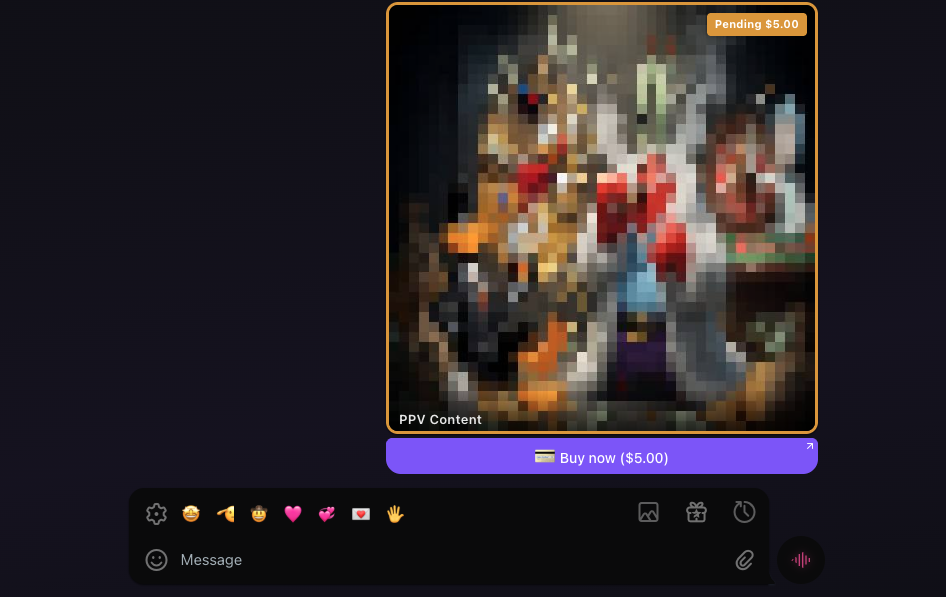
Your view as the sender. The Pending tag tells you the PPV is in flight; the button
renders identically on both sides.
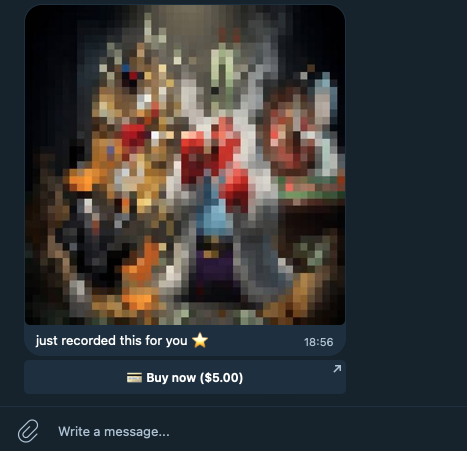
What the fan sees. One tap on the button opens the matching Mini App on your creator
profile with the checkout already loaded.
## Compared to the old way
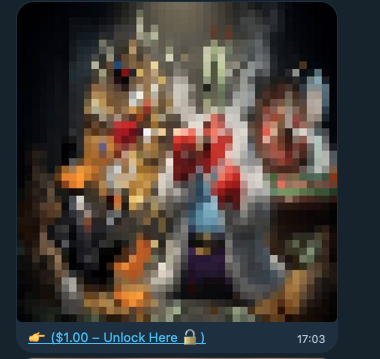
The legacy PPV path embedded the unlock link in the caption of the photo bubble. The fan had to read the line, find the link, and tap it inside a tiny target. It worked, but it was three taps and a hunt:
The legacy text-link path — a thin underlined caption beneath the photo. Same content,
much smaller tap target, easier to skim past.
With KVIQ BOT in the loop, KVIQA promotes the link out of the caption and into a real Telegram inline-keyboard button on the same bubble. The blurred photo, the price, and the CTA all sit in one block — there is no parsing for the fan to do.
## How to turn it on
There is no toggle. The button shows up automatically the moment KVIQ BOT is attached to the sending account and a vault is paired for the creator. The setup is exactly the same as the Send Buttons guide — if you have already followed that, you are done.
1. **Pair a vault.** Open [Team Board](https://kviqa.com/team-board) , click your creator, paste your Dropfans, UnlockBL, or Fangate API key. The creator's public @handle gets pulled in automatically.
2. **Make sure the Telegram account has Premium.** Telegram Business (and therefore Chatbots) is gated behind Premium.
3. **Attach @KVIQBOT as your Business Chatbot.** Telegram → Settings → Business → ChatBots → paste https://t.me/KVIQBOT → pick *All 1-to-1 Chats Except…*.
Full step-by-step (with screenshots of the Telegram screens you need to tap through) is in the [Send Buttons setup guide](https://kviqa.com/blog/send-buttons) . The exact same setup unlocks both: the gift-icon Send Subscribe / Tip / Profile buttons in the composer toolbar, and this new PPV button path.
## You don't change how you send PPVs
From your side, nothing about the PPV flow changes. You pick a vault item, set a price, and hit send the same way you always have. KVIQA decides at send-time which path to use:
- **KVIQ BOT attached + fan has messaged you since** → goes out as a single bubble with the blurred photo and the inline *Buy now ($X.XX)* button welded to it.
- **Album PPV (multi-photo)** with the bot attached → goes out as the album plus a follow-up button bubble right underneath. Telegram bans inline keyboards on media groups, so the button rides on a tiny companion message. Same one-tap UX.
- **Bot not attached, vault not paired, or the fan hasn't messaged the account since the bot was added** → KVIQA quietly drops to the legacy MTProto path. The PPV still sends. You see a small toast with the exact reason so you know whether to re-attach the bot or just wait for the fan to ping you first.
KVIQ BOT auto-sent PPVs (the ones the bot itself fires from a script) follow the exact same logic, so the inline-button path is now the default everywhere your account is eligible — manual send, auto-send, and the Send Tip / Subscribe / Profile buttons all share the same rendering.
## About the "fan must message first" rule
Telegram's Business API does not let a chatbot send the *first* message in a conversation. If you have never received a message from the fan after attaching KVIQ BOT, a button send into that conversation is not allowed by Telegram. KVIQA detects this at send-time and falls back to the legacy text-link path so the PPV still delivers — but the button render isn't possible until the fan sends at least one message to your account.
Once they ping you (even just *"hi"*), every subsequent PPV in that conversation renders with the inline button. There is nothing for you to do to "unlock" the channel beyond receiving that first message.
## Why we shipped this
The PPV bubble has been the single highest-traffic CTA in KVIQA chats for a year. Until now the link was buried in a one-line caption, which is a worse target than a button by a wide margin. Promoting the link into a real inline-keyboard button matches what the rest of the chat industry (Dropfans paid posts, OnlyFans on-platform CTAs, link-sharing bots) already does — Telegram just needed Business Chatbots to ship before we could do it without a workaround.
## TL;DR
1. Pair a vault on the creator card in Team Board.
2. Make sure the Telegram account has Premium.
3. Attach @KVIQBOT as the Business Chatbot.
4. Send a PPV the same way you always have. If the fan has messaged the account since KVIQ BOT was attached, the send goes out as an inline *Buy now ($X.XX)* button. If not, you get the old text-link fallback — and a toast telling you why.
---
## FAQ
### Do I need to change anything in how I send PPVs?
No. The send flow is identical — pick a vault item, set a price, hit send. KVIQA picks the path: if KVIQ BOT is attached and the fan has messaged the account since the bot was connected, it goes out as a "Buy now" button under the blurred preview. Otherwise it falls back to the old text-link bubble. You do not flip any toggle.
### When does the new button path fire?
When three things are true at the same time: (1) the creator's vault (Dropfans, UnlockBL, or Fangate) is paired in Team Board, (2) KVIQ BOT is attached to the sending account via Telegram Business → ChatBots, and (3) the fan has sent at least one message to the account after KVIQ BOT was attached. Miss any one of the three and the send drops to the legacy text-link path automatically.
### What about album PPVs (multiple photos)?
Telegram forbids inline keyboards directly attached to a media group, so an album PPV gets a follow-up button bubble right under the album. Same one-tap UX from the fan's side; just rendered as two messages instead of one. Single-photo PPVs get the button welded onto the photo bubble itself, which is the prettier render in our screenshots.
### My PPV went out as the old text-link — why?
KVIQA pops a small toast with the reason at the moment of the fallback. The common ones: KVIQ BOT not attached on this account; vault not paired for this creator; or — most often — the fan hasn't messaged you since you attached the bot, which is a Telegram-side rule for Business Chatbots. The PPV still sends successfully, just through the legacy path.
### How much does this actually move conversion?
Across the agencies we tested it with, the in-bubble Buy now button shows a similar lift to the Send Subscribe / Send Tip buttons — about +30% on click-through versus the same checkout link as plain text. The mechanism is identical: the fan goes from three taps (read → copy → tap) to one (tap).
### Does it work with OnlyFans / Fansly / Fanvue?
Not yet. The Buy now button deep-links into a Telegram Mini App (Dropfans, UnlockBL, or Fangate) where checkout completes inline. OnlyFans, Fansly, and Fanvue don't (yet) ship a Telegram Mini App — there is nothing for the button to open. The moment a partner ships one we wire it the same way.
---
## About KVIQA
KVIQA is the all-in-one Telegram OFM (TG OFM) CRM and creator-chatter marketplace. Unified omnichannel inbox (Telegram + OnlyFans + WhatsApp pilot), built-in chatter hiring marketplace, AI auto-responder (KVIQ BOT), encrypted Telegram sessions, and unified earnings attribution across every connected platform and payment rail.
- Site: https://kviqa.com/
- Full product reference (LLM-friendly): https://kviqa.com/llms-full.md
- Blog index: https://kviqa.com/blog
- Pricing: https://kviqa.com/pricing
- Safety & legal: https://kviqa.com/safety